Practice Mode allows you to work with the same assignment you would take for a grade, but in a safe environment where your responses do not affect your actual grade. You can take the assignment as many times as you like during the timeframe set by your instructor for Practice Mode. The assignment functions and grades exactly like the regular version while you are practicing.
Note: This feature may not be available for every assignment. Its availability depends on your instructor’s settings.
To access Practice Mode, click on the assignment name or the three vertical dots next to the assignment name to open the Assignment Menu. From the menu, select Take in Practice Mode.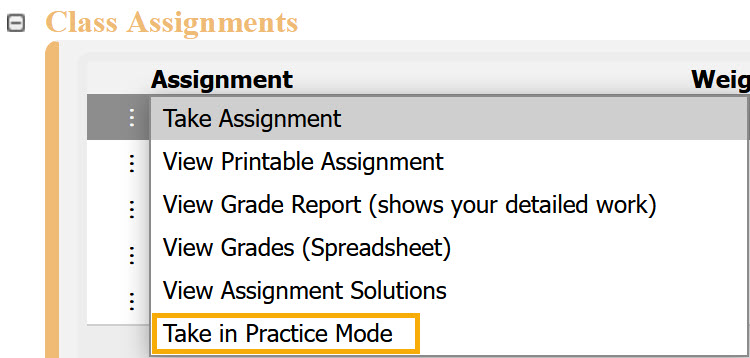
If the feature is not enabled for the assignment, you will see a message indicating this.

If accessed before the start date or after the end date for Practice Mode, you will see a message.

When Practice Mode is available, your assignment will display Practice Mode in red near the upper-left corner.
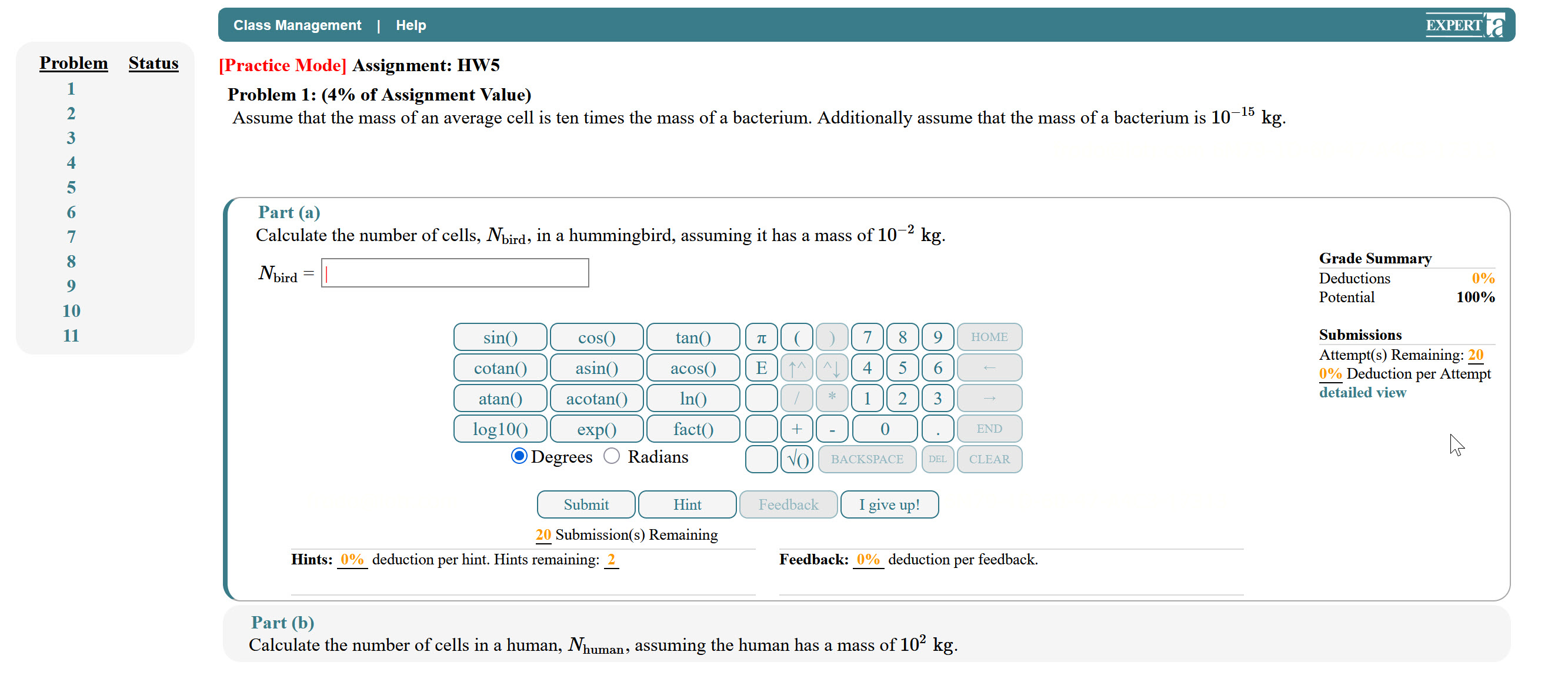
To exit Practice Mode, click Class Management in the upper-left corner to return to the Class Management page.
Was this article helpful?
That’s Great!
Thank you for your feedback
Sorry! We couldn't be helpful
Thank you for your feedback
Feedback sent
We appreciate your effort and will try to fix the article