The View Grades (Spreadsheet) option lets you see your grades for an individual assignment in a spreadsheet format. This view shows your grade for each problem and problem part, rather than just the overall assignment grade.
To access it, click on the assignment name or the three vertical dots next to the assignment name to open the Assignment Menu. From the menu, select View Grades (Spreadsheet).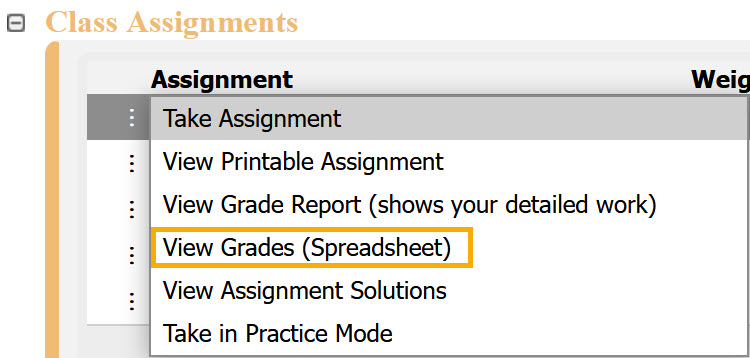

In the spreadsheet view:
Grades are shown as percentages by default, but you can switch to Points View by selecting the checkbox next to it.
Clicking on any grade will open the detailed grade report for that problem or problem part. See View Grade Report (shows your detailed work) for more information.
You can export the spreadsheet to another program, like Excel or Adobe, by selecting the file type from the drop-down menu and clicking Save.
To exit the grade spreadsheet, click Class Management in the upper-left corner to return to the Class Management page.
Was this article helpful?
That’s Great!
Thank you for your feedback
Sorry! We couldn't be helpful
Thank you for your feedback
Feedback sent
We appreciate your effort and will try to fix the article