To begin working on an assignment, click on the assignment name or the three vertical dots next to the assignment name to open the Assignment Menu. From the menu, select Take Assignment.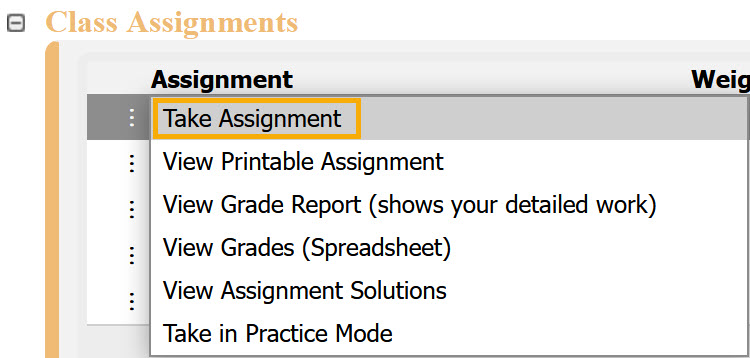
After selecting Take Assignment, the assignment will open. Depending on how the assignment is set up, you may see additional information before beginning, such as instructions or messages. Follow any on-screen prompts to proceed.
If the assignment has not yet opened or has already closed, you will see a notification similar to the ones below.

To exit, click Class Management in the upper-left corner to return to the Class Management page.
Was this article helpful?
That’s Great!
Thank you for your feedback
Sorry! We couldn't be helpful
Thank you for your feedback
Feedback sent
We appreciate your effort and will try to fix the article