It is never ideal when an LMS platform (such as Canvas) is unavailable. During an outage, instructors have two options to ensure students can continue completing assignments in Expert TA without interruption.
Each option has tradeoffs, and instructors should choose the approach that best fits their course needs and timing of the outage.
Important: In both cases, instructors must notify students of the alternate access method. We also recommend including this information in your syllabus in advance.
If you need assistance or would like to discuss which option is best for your situation, please contact your account manager or support@theexpertta.com.
Option 1: Keep LMS Integration Enabled and Provide Direct Login Access
In this option, the LMS connection remains in place while students are given direct access to Expert TA. This approach can be used during an LMS outage, but it may also be helpful for individual students who have trouble accessing their assignment links at any time.
When students access assignments through the LMS during an outage, they may see a warning message indicating that they can still complete their work in Expert TA, but that grades will not sync to the LMS until service is restored. If this message is not read carefully, it may confuse some students who assume there is an issue with the assignment itself.
Once the LMS becomes available again, no instructor action is required. Students can immediately resume using the LMS links as normal, and the integration remains intact because it was never disconnected.
Considerations:
- Students may see a warning message during LMS outages stating that grades will not sync until service is restored
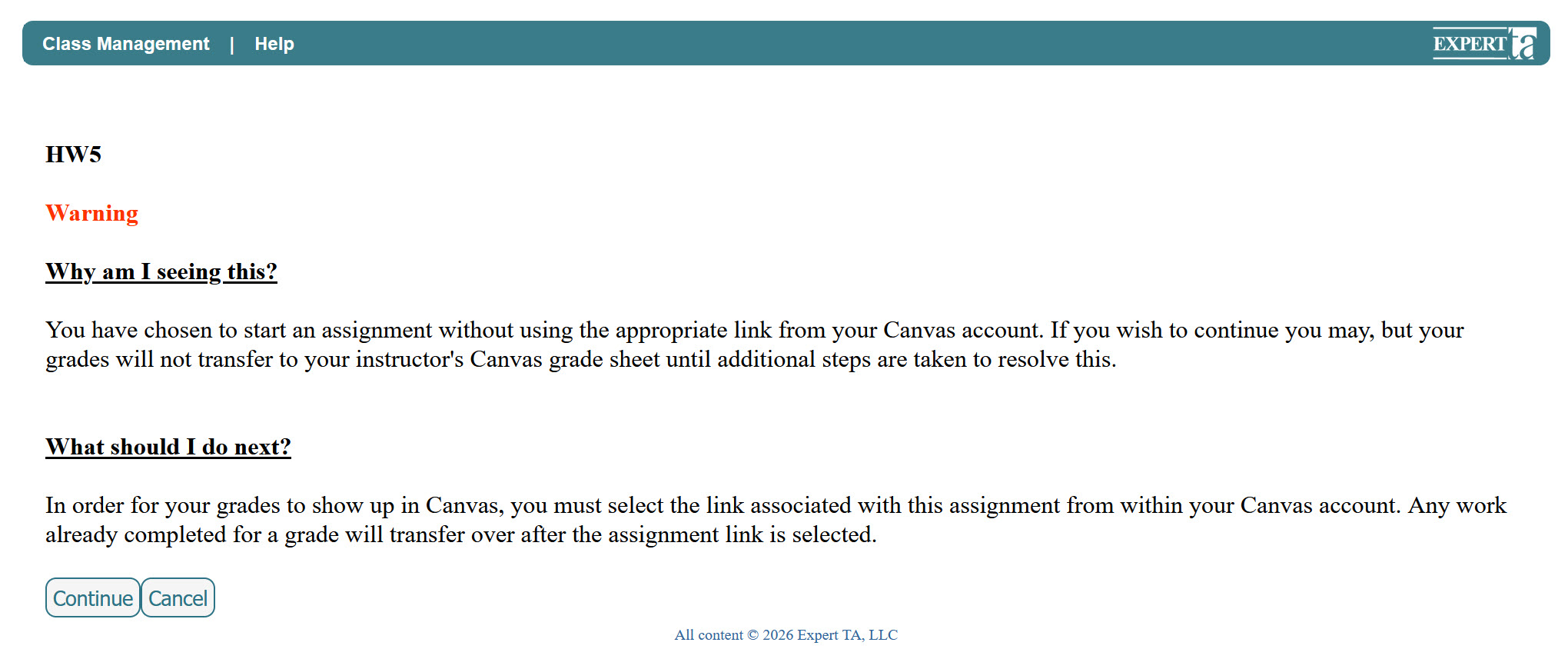
- Potential for confusion if students do not read the message carefully
- No instructor action is needed when the LMS comes back online
- LMS links resume normal behavior immediately once service is restored
- Can also be used as a workaround for individual students who have difficulty accessing assignments through the LMS
Instructions for Students
- Provide students with the Expert TA login page: https://login.theexpertta.com/Login.aspx
- Students must reset their password before logging in for the first time (click here for instructions)
- After resetting their password, students can log in directly to Expert TA and continue working
Option 2: Temporarily Disconnect LMS Integration and Provide Direct Login Access
In this option, the LMS integration is temporarily disabled, and students access Expert TA directly using their login credentials. This approach removes the LMS warning message entirely, which can help reduce confusion during an outage. However, it requires the instructor to re-enable LMS integration once the outage is resolved.
When LMS integration is disabled, students will not be able to access assignments through the LMS until the connection is restored. This means that communication to students is especially important, as any students who miss the instructions may experience a delay in accessing their work. Once the LMS becomes available again, the instructor must re-establish the integration before LMS links will function normally.
Considerations:
- Eliminates LMS warning messages for students during outages
- Can reduce confusion compared to Option 1
- Requires instructor action to disable and later re-enable LMS integration
- LMS assignment links will not function while integration is disabled
- Students who miss outage communication may experience delayed access
- Access is restored only after the instructor re-establishes the LMS connection
Instructions: Disable LMS Integration
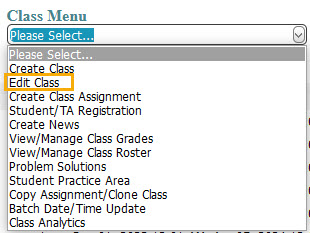
- Go to Class Menu → select Edit Class
- Select Undo LMS Integration
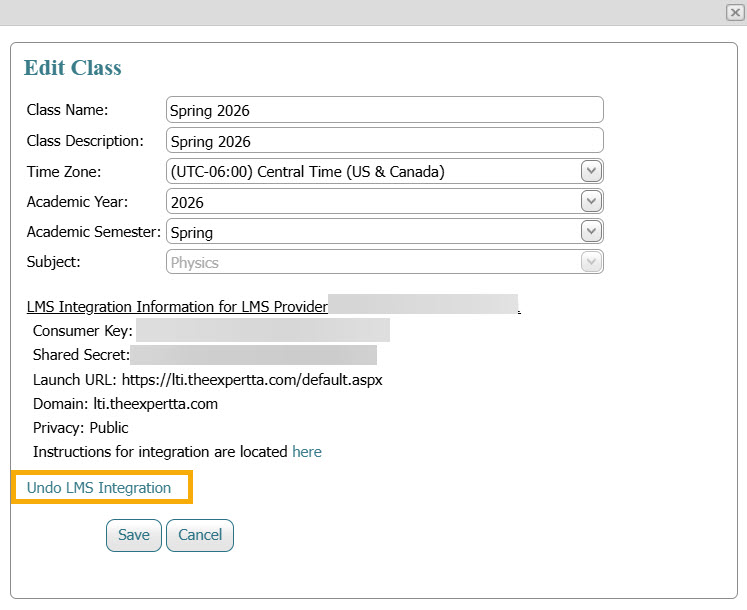
- When prompted (“Are you sure you want to undo LMS Integration?”), click OK
- On the Edit Class screen, confirm the option now shows “Configure my Class for LMS Integration”
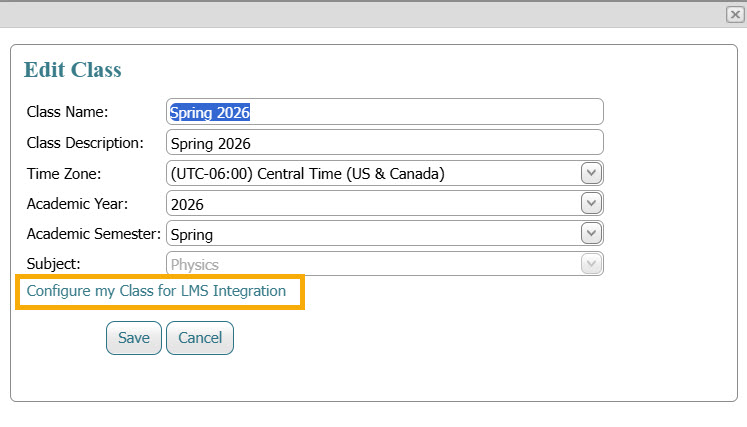
- Click Save
Instructions: Re-enable LMS Integration
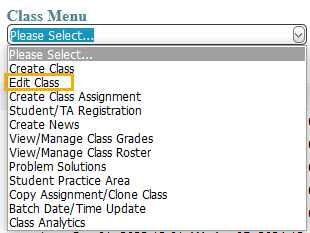
- Go to Class Menu → select Edit Class
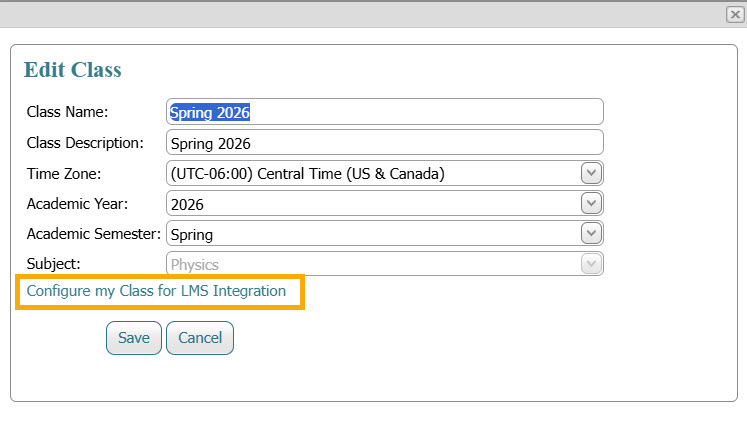
- Select Configure my Class for LMS Integration
- Select your LMS provider and LTI protocol
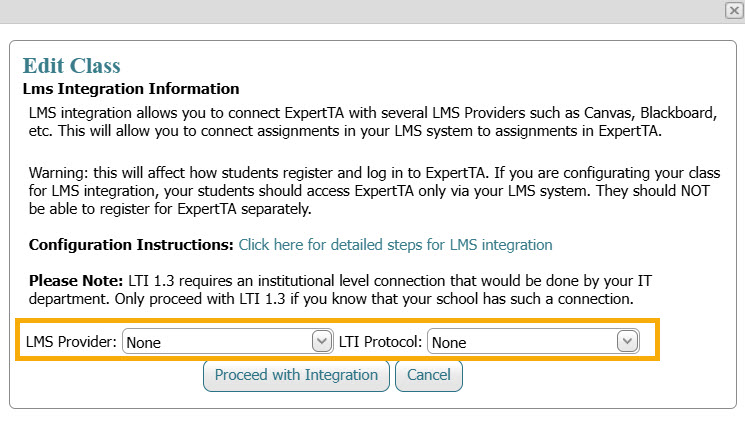
- Click Proceed with Integration
- Review the updated LMS integration details on the Edit Class screen. The consumer key, shared secret, and assignment links remain unchanged when LMS integration is disabled and re-enabled. Only the integration toggle within Expert TA needs to be updated; no reconfiguration is required in the LMS.
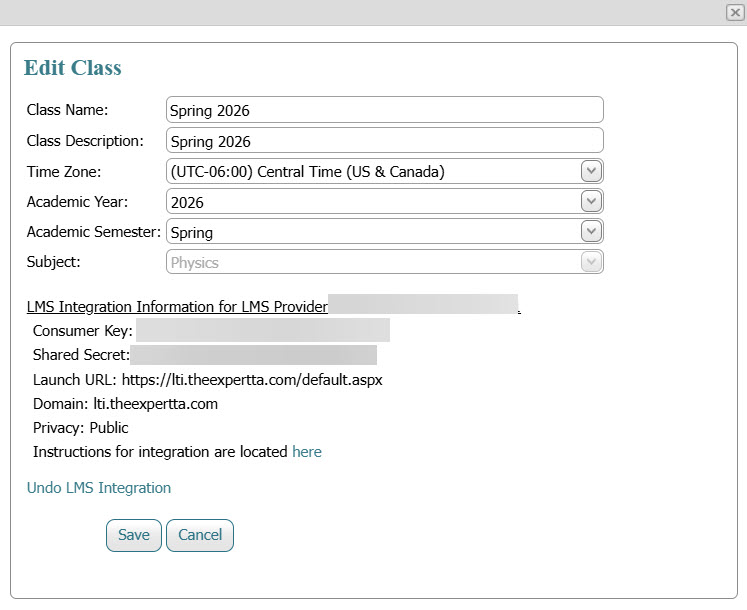
- Click Save
Instructions for Students
- Provide students with the Expert TA login page: https://login.theexpertta.com/Login.aspx
- Students must reset their password before logging in for the first time (click here for instructions)
- After resetting their password, students can log in directly to Expert TA and continue working
Was this article helpful?
That’s Great!
Thank you for your feedback
Sorry! We couldn't be helpful
Thank you for your feedback
Feedback sent
We appreciate your effort and will try to fix the article