The Calendar provides a monthly view of all class assignments, making it easy to see what’s due and when.
Accessing the Calendar
To open the Calendar, click the Calendar button from the Class Management page.
Key Features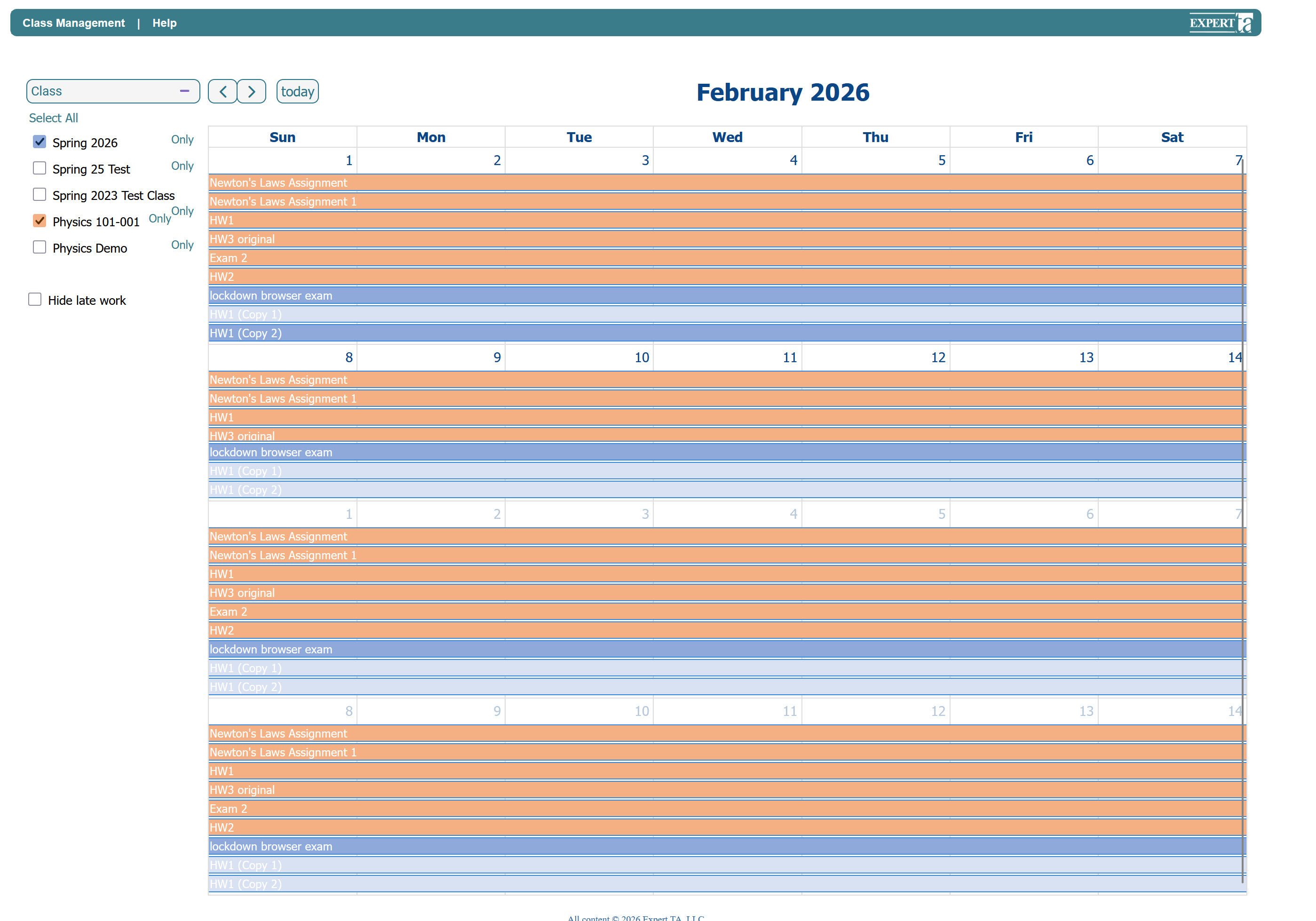
Color-Coded Assignments:
Each class is assigned a unique color by the system. Open assignments appear in a dark shade, while assignments that are available for late submission appear in a lighter shade of the same color. These colors cannot be changed.Class Filtering:
On the left side, you can select which class assignments you want to display. You also have the option to Hide late work if you only want to see assignments that are currently open.Navigation:
The calendar displays one month at a time. Use the arrows to move forward or backward between months, or click the Today button to quickly locate the current date.Assignment Details & Actions:
Clicking an assignment on the calendar opens its details, including the Start, Due, and End dates. At the bottom, a drop-down menu provides quick access to assignment actions without leaving the Calendar view.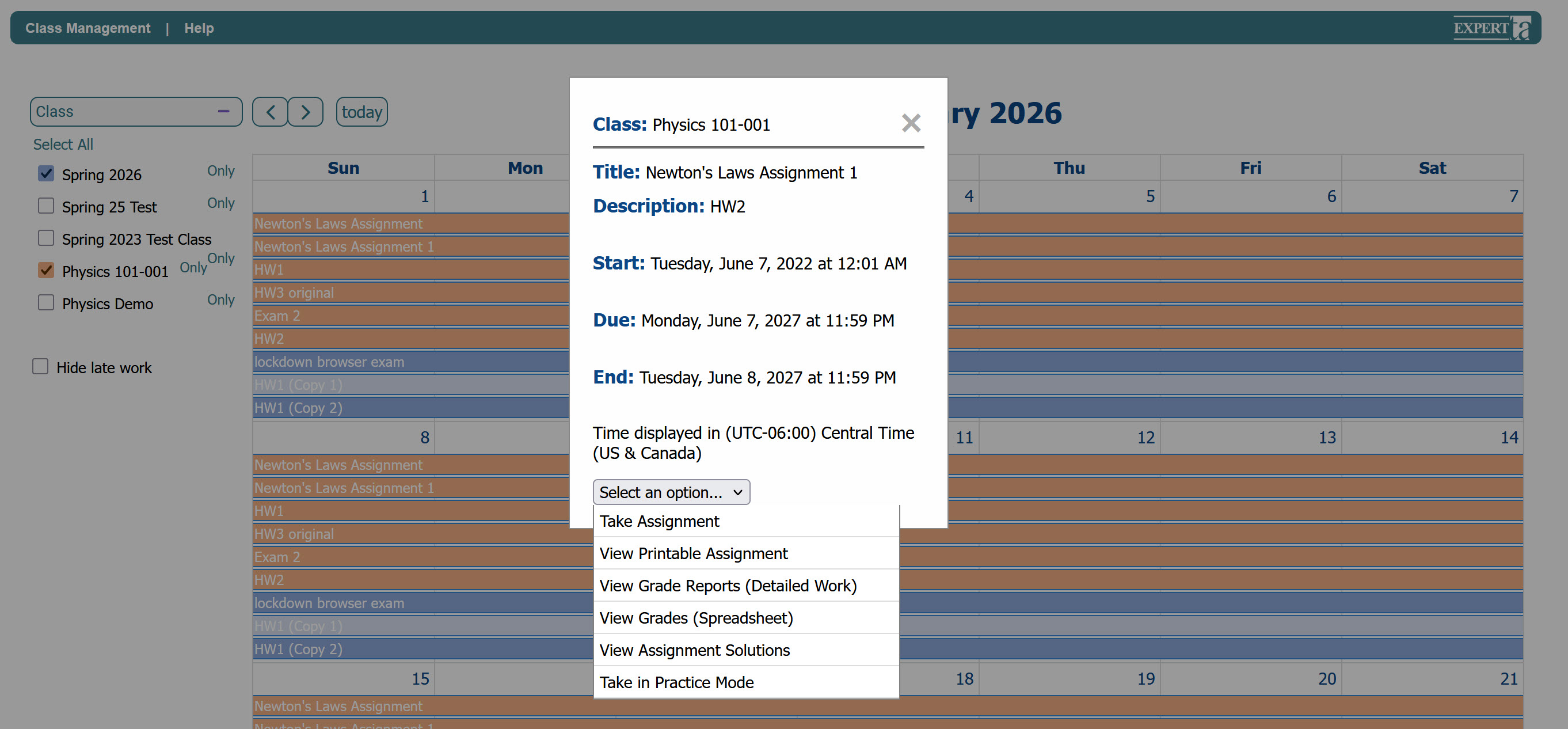
To exit the Calendar view, click on Class Management in the upper left-hand corner to return to the Class Management page.
Was this article helpful?
That’s Great!
Thank you for your feedback
Sorry! We couldn't be helpful
Thank you for your feedback
Feedback sent
We appreciate your effort and will try to fix the article