The Consolidate Grades for Multiple Classes feature allows instructors to combine grades from two or more classes into a single grade sheet for reporting purposes.
This is commonly used when instructors teach multiple sections of the same course. While assignments may have different due dates or times for each section, grades can still be consolidated into one report.
How to Consolidate Grades
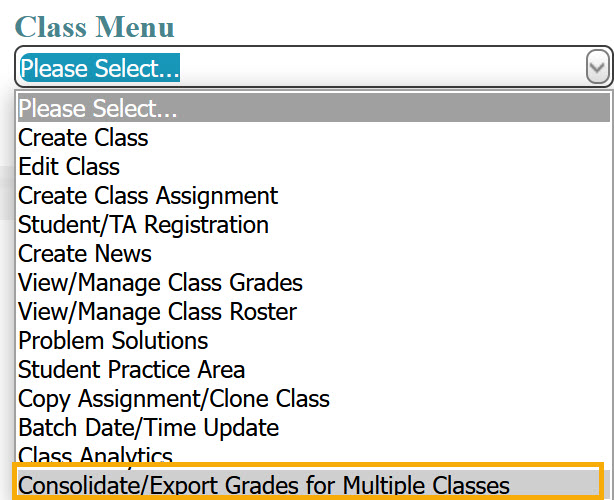
From the Class Menu, select Consolidate Grades for Multiple Classes.
Select the checkbox next to each class you want to include.
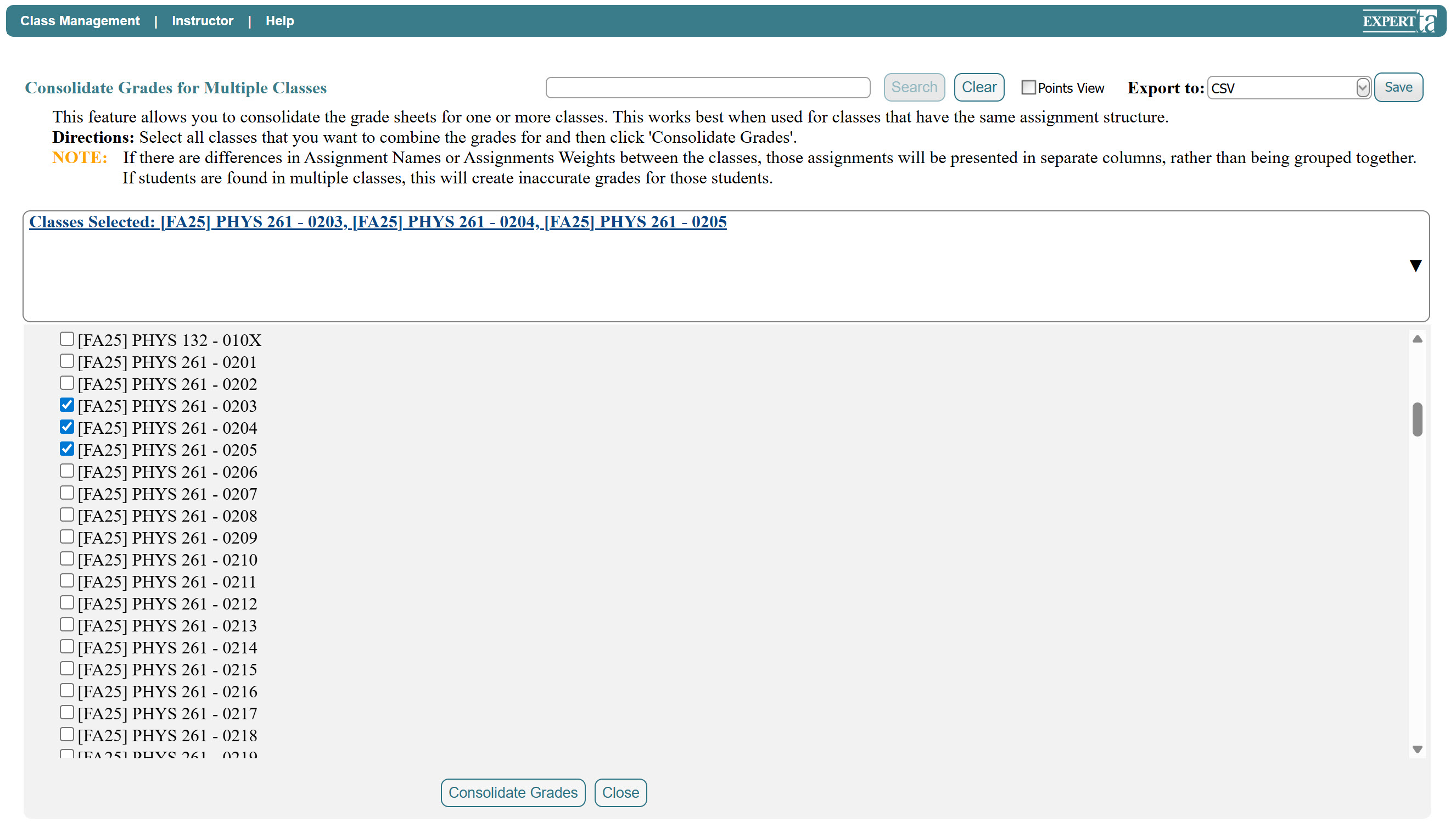
Click Consolidate Grades at the bottom of the screen.
If you do not want to proceed, click Close to exit without consolidating grades.
Once processing is complete, a consolidated grade sheet will appear. This grade sheet can be exported by selecting your Export format in the upper right-hand corner and clicking Save.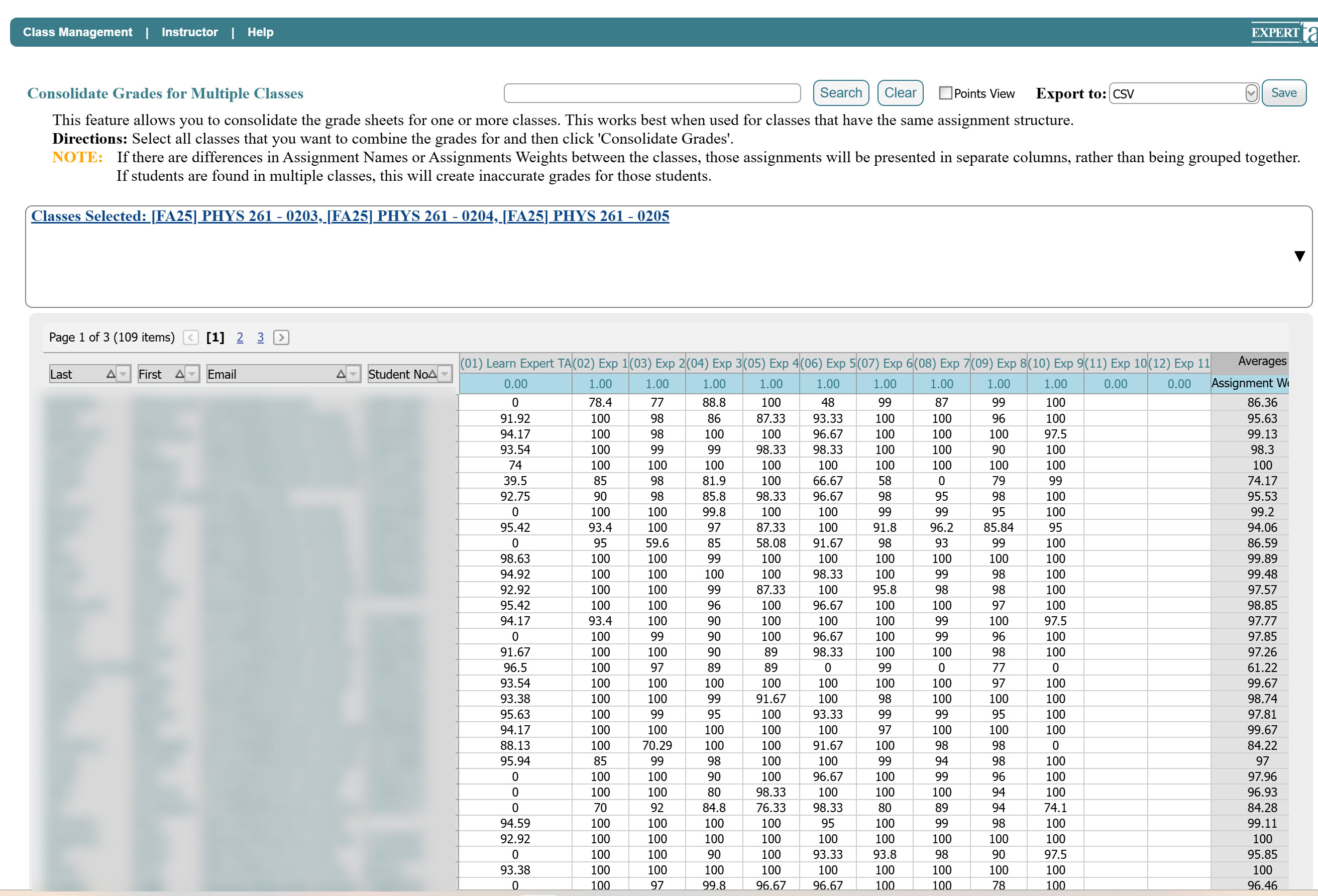
Possible Errors When Consolidating Grades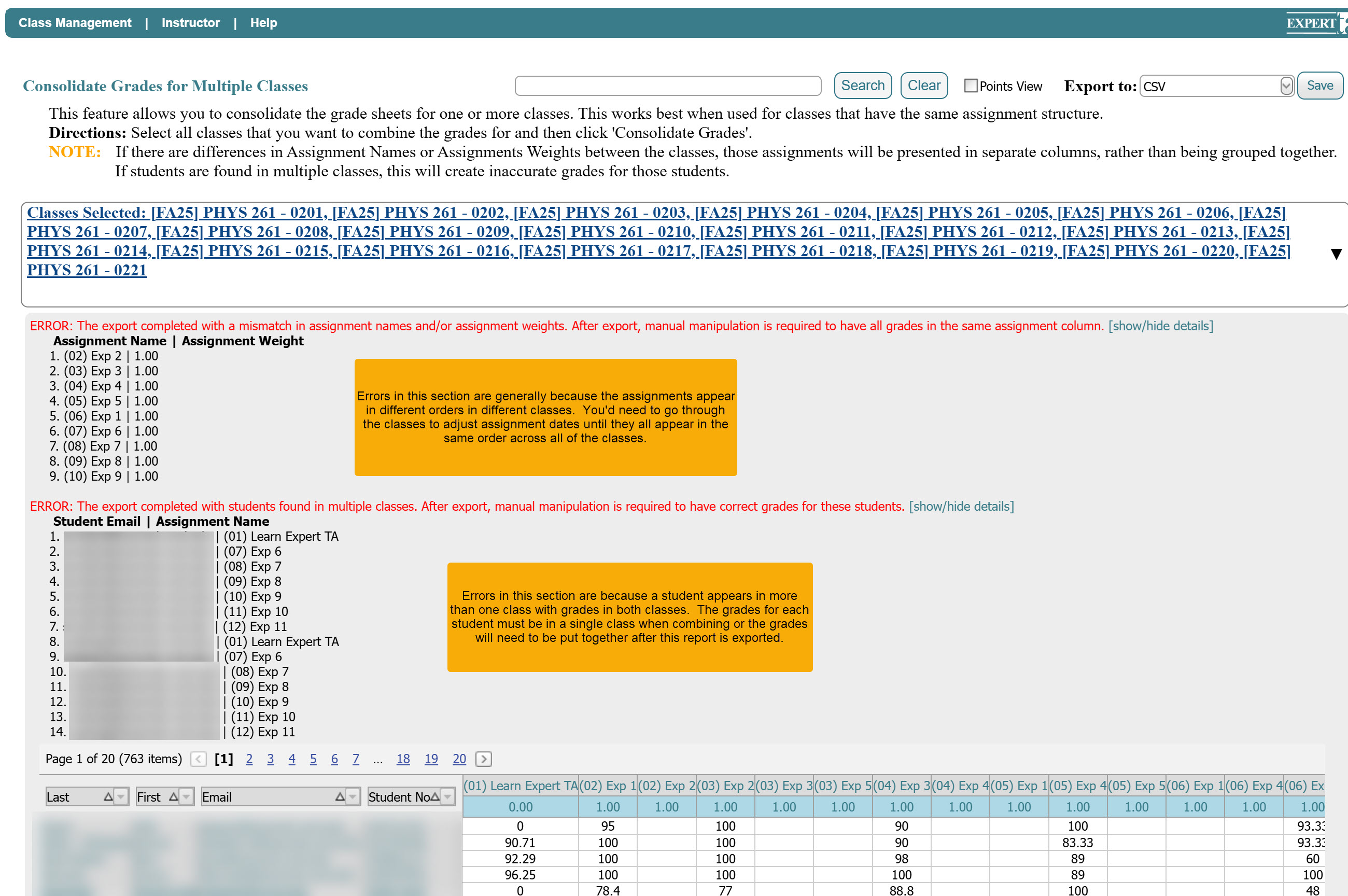
You may encounter one of the following errors during consolidation:
1. Assignment Name or Weight Mismatch
This error occurs when:
Assignment names differ between classes, or
Assignment weights differ, or
Assignments appear in a different order across classes.
How to resolve:
Ensure that all assignments:
Have identical names
Have the same weights
Appear in the same order across all selected classes
If assignments are out of order, adjust the assignment dates as needed, so they align consistently across all classes before attempting consolidation again.
2. Duplicate Students Found in Multiple Classes
This error occurs when the same student appears in more than one of the selected classes. This commonly happens during the add/drop period if a student switches sections after completing one or more assignments and is not removed from the original class.
How to resolve:
Manually combine the student’s grades into a single class in the exported file, or
Contact Support for assistance with merging the student’s grades into one class.
Was this article helpful?
That’s Great!
Thank you for your feedback
Sorry! We couldn't be helpful
Thank you for your feedback
Feedback sent
We appreciate your effort and will try to fix the article