Warning: All associated problem and grade data will also be deleted. Use extra caution when selecting this action, as it cannot be undone.
To access this feature:
- Find your assignment on the Class Management page
- Open the Assignment Menu by clicking on the vertical ellipses or clicking on the assignment name
- Select Delete Assignment or Edit Assignment to open the Assignment Editor
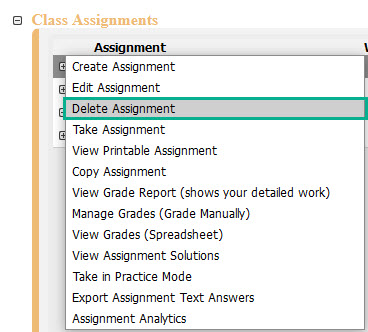
- Select the Delete Assignment button

After clicking the Delete Assignment button, you will receive a pop-up window with a warning. If no students have submitted work for the assignment, you will see the warning below. Enter at least one character in the required Comments box and then click on Delete to continue deleting the assignment or Cancel to abort deleting.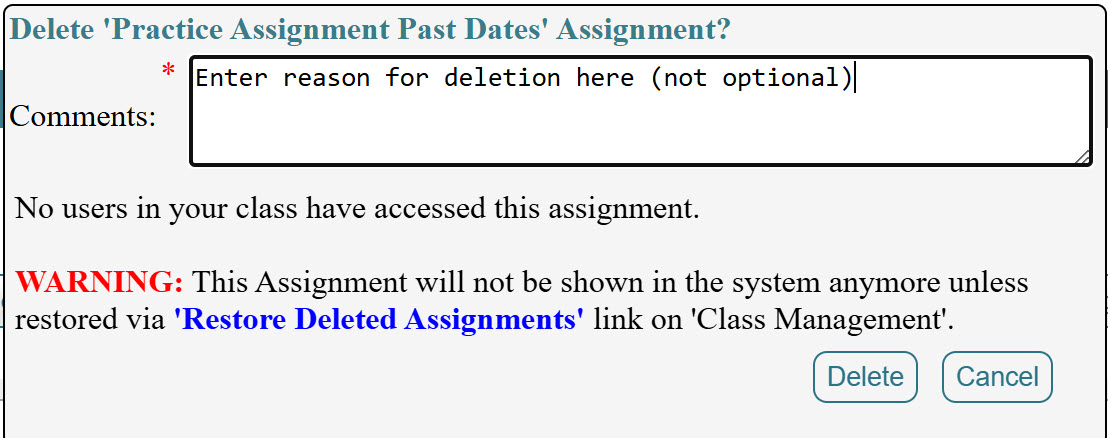
If students have submitted work for the assignment, the warning message will indicate how many students have submitted. Enter at least one character in the required Comments box and select the checkbox to confirm that the assignment and student work will no longer appear in your class. Once the checkbox is selected, the Delete button will become active. Click Delete to proceed with deleting the assignment, or click Cancel to abort.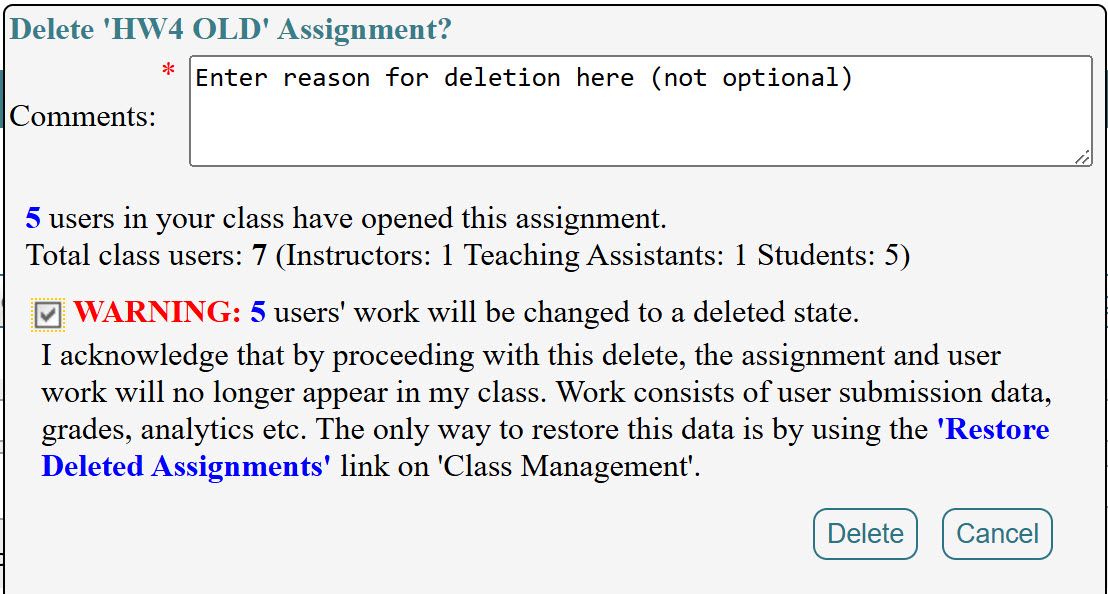
Was this article helpful?
That’s Great!
Thank you for your feedback
Sorry! We couldn't be helpful
Thank you for your feedback
Feedback sent
We appreciate your effort and will try to fix the article